
 Fennick
 Writing and formatting
Change a line into a heading, a list or a to-do, and style its words.
A page is plain writing. Each paragraph is a line.
A page's icon and cover
Point at a page's title. Above it are Add icon, Add cover and Add tag. On a phone they are the first three rows of the page's ⋯ menu (Change icon and Change cover once it has them).
- Add icon opens every icon there is. Search them by name or by a word (
plantfinds the sprout), and pick one of the ten colours for it. The icon sits above the title, and beside the page's name, in its colour, everywhere the page is listed: the sidebar, tabs, the Library, search, the path at the top of a page, Linked here, and where the page is mentioned. Click it to change it or remove it. - Add cover puts a soft colour band with rounded corners across the top of the page. Point at the cover for Change cover (a gradient or one colour) and Remove. On a phone, tap the cover to show them; tap again, or anywhere else, to hide them.
Day pages have no icon or cover.
Line kinds
Every line has a kind. Change it in three ways:
- Type
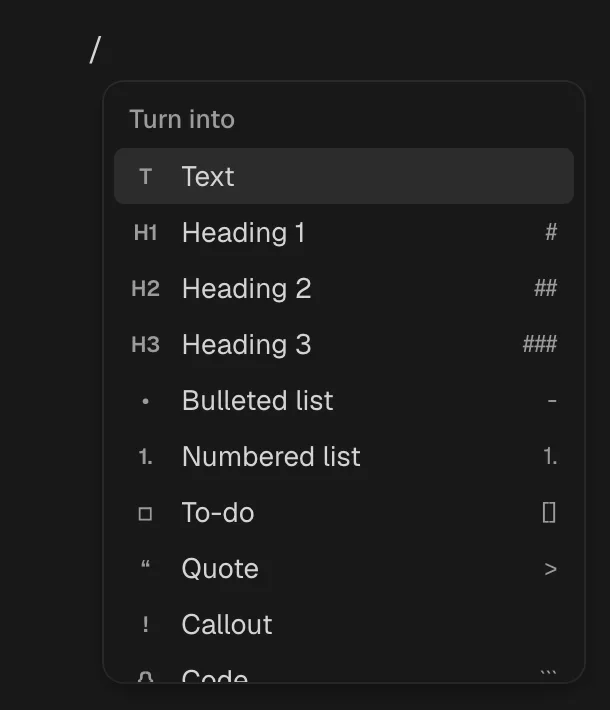
/at the start of a line, or after a space. The menu shows the kinds. Keep typing to filter it (/head,/todo). Press Enter to pick. The/wordyou typed goes away; the rest of the line stays. - Type a markdown mark at the start of the line (see below).
- Press ⌘⌥ and a number (Ctrl+Alt on Windows).
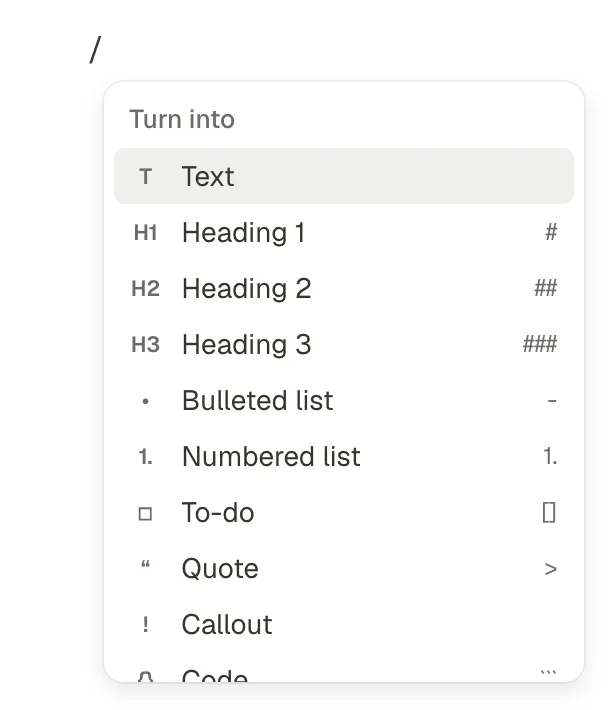
| Kind | Type at the start | Key |
|---|---|---|
| Text | ⌘⌥0 | |
| Heading 1 | # | ⌘⌥1 |
| Heading 2 | ## | ⌘⌥2 |
| Heading 3 | ### | ⌘⌥3 |
| To-do | [] or [ ] | ⌘⌥4 |
| Bulleted list | - , * or + | ⌘⌥5 |
| Numbered list | 1. or 1) | ⌘⌥6 |
| Quote | > or " | ⌘⌥7 |
| Code | ``` | ⌘⌥8 |
| Page | ⌘⌥9 | |
| Callout | ||
| Divider | --- |
How the kinds behave
- Headings are a style only. The lines after a heading do not belong to it. To put lines inside a line, indent them.
- To-dos have a round checkbox. Click it, or press ⌘Enter, to tick it.
- Lists continue: Enter on a list line makes another of the same kind. Enter on an empty list line moves it out one step, or turns it back into text.
- Quotes are set off from the writing around them.
- Callouts sit in a grey box with a lightbulb at their start. Code sits in a lined box, in fixed-width letters, so the two never look alike.
- To make a section you can fold, indent lines under a line. Any line with lines inside it folds. See Outlining.
- Code lines keep every letter as typed. Enter adds a line inside the code. The /, #, @ and :: menus do not open in code.
- Page makes the line a page of its own. You go to it, and the line shows as a link to it.
- Divider draws a rule and starts a new line after it.
Backspace at the start of a heading, list line or other kind turns it back into text. On a text line, it joins the line to the one above.
Markdown while you type
Type the marks around words and Fennick styles the words and drops the marks:
| Type | You get |
|---|---|
**words** | bold |
*words* or _words_ | italic |
`words` | inline code |
~words~ |
When you paste text, more marks are read: ~~strike~~, ==highlight==, <u>underline</u> and [words](https://…) links. See Copy and paste.
Text styles
Words in a line can be bold, italic, underlined, struck through, inline code, highlighted, or linked.
| Style | Mac | Windows |
|---|---|---|
| Bold | ⌘B | Ctrl+B |
| Italic | ⌘I | Ctrl+I |
| Underline | ⌘U | Ctrl+U |
| Inline code | ⌘E | Ctrl+E |
| Strikethrough | ⌘⇧S | Ctrl+Shift+S |
| Highlight | ⌘⇧H | Ctrl+Shift+H |
| Link | ⌘K | Ctrl+K |
- With words selected, the key styles them. Press it again to take the style off.
- With nothing selected, the next letters you type take the style.
- The words stay plain words underneath. Search and agents read them as written.
- Styles stay with their words when you split a line, join two lines, duplicate, copy, paste or undo.
The toolbar on selected words
Select words in a line. When you let go of the mouse, a small toolbar shows above them. It has:
- Turn into: the line's kind, with a list of kinds to change to.
- B, I, U,
S, code and highlight. A pressed button means the words already have that style. - Beside the highlight, ⌄ opens the highlight colours: the ten soft colours of tags, and Remove highlight. Yellow is the first.
- Link, or Remove link when the words are already linked.


The highlight button and ⌘⇧H use the colour you picked last, so a run of highlights in one colour is one key each. Dark mode has its own, darker shades of each colour.
The words stay selected while you use it. Esc puts it away. It does not show on code lines. On a phone it shows below the words, because the phone's own menu sits above them.
Web links
Select words and press ⌘K. Paste a web address and press Enter. Or paste a web address straight over the selected words. ⌘-click a link to open it (Ctrl-click on Windows). To link words to a page or a thing instead, see Linked highlights.
Enter and Backspace
- Enter in the middle of a line splits it. The words after the caret go to a new line, with their styles.
- Enter at the start of a line with words puts an empty line above it.
- Backspace at the start of a text line joins it to the line above. An empty line just goes.
- Backspace just after a mention takes the whole mention, never part of its name.