
 Fennick
 Links and mentions
Link to a page or a thing with a mention, or by highlighting your own words.
A mention puts a page or thing in your sentence by name. A linked highlight keeps your own words and colours them. Every page lists what links to it.


Mentions
- Type
@(at the start of a line or after a space), or[[. - Type a few letters of a name. The list shows pages, tagged things and days. Names that start with your letters come first.
- Press Enter, or click one.
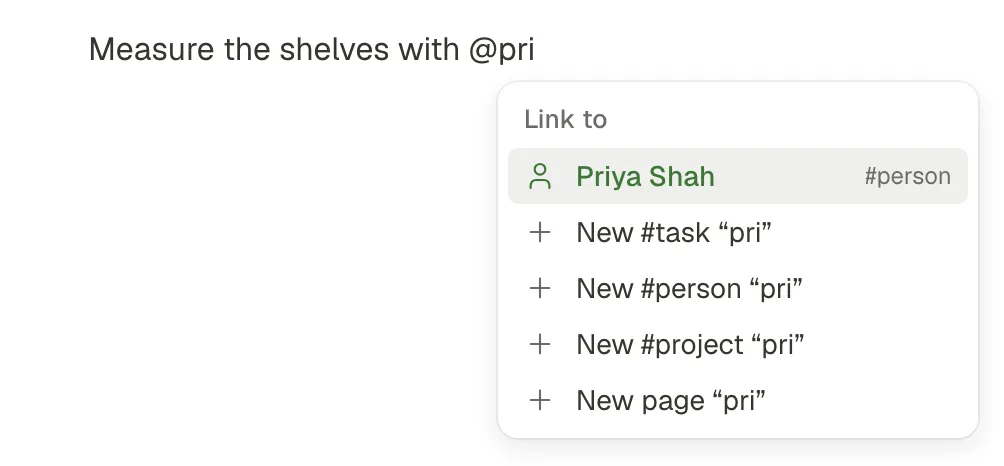
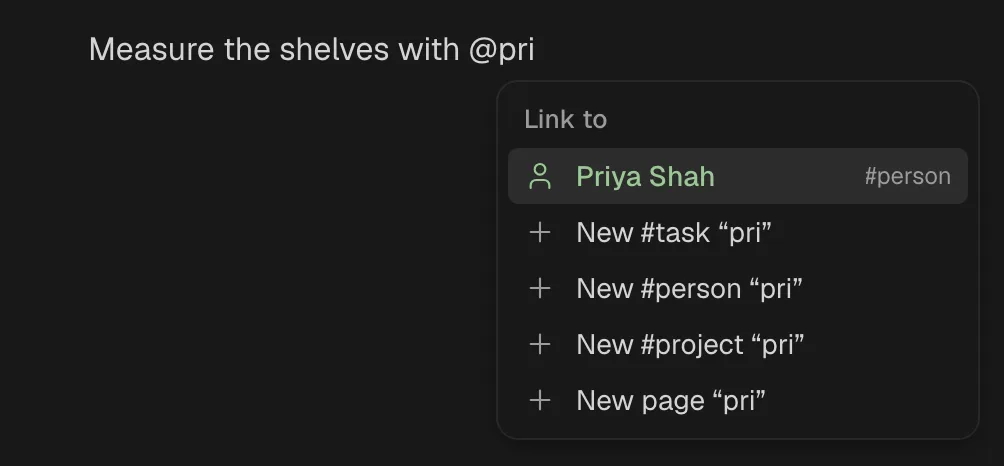
If nothing has that name yet, the list offers to make it: New #person “Priya Shah” (for your most-used tags), or New page “…”. A new tagged thing lives on its own, and the mention points at it.
- A mention is one solid piece. Backspace takes it whole.
- It always shows the current name and icon. Rename the page, and every mention changes.
- Click it to go there.
Linked highlights
Link your own words to a page or a thing, without changing them.
- Select the words.
- Press ⌘K, or click Link in the toolbar.
- Type to find the page or thing. Press Enter.
- The words stay as you wrote them. The thing's colour shows behind them.
- A small badge in the right margin shows the thing's tag icon (or its first letter, if the tag has no icon). Click the badge to go there.
- The thing's page lists the passage, with the words around it.
- Paste a web address in the same box to make a web link instead.
To take a link off: select the words, press ⌘K and pick Remove link, or click the pressed Link button in the toolbar. A mention gives back its name as plain words.
Peek
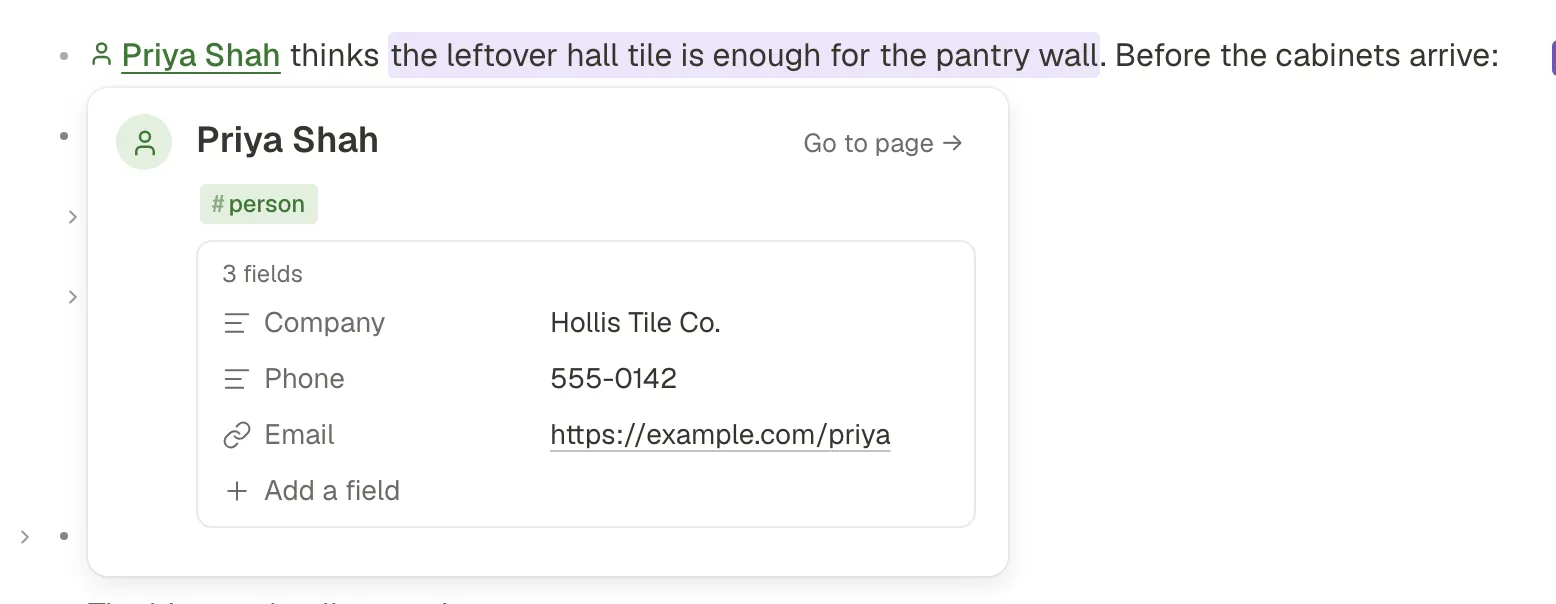
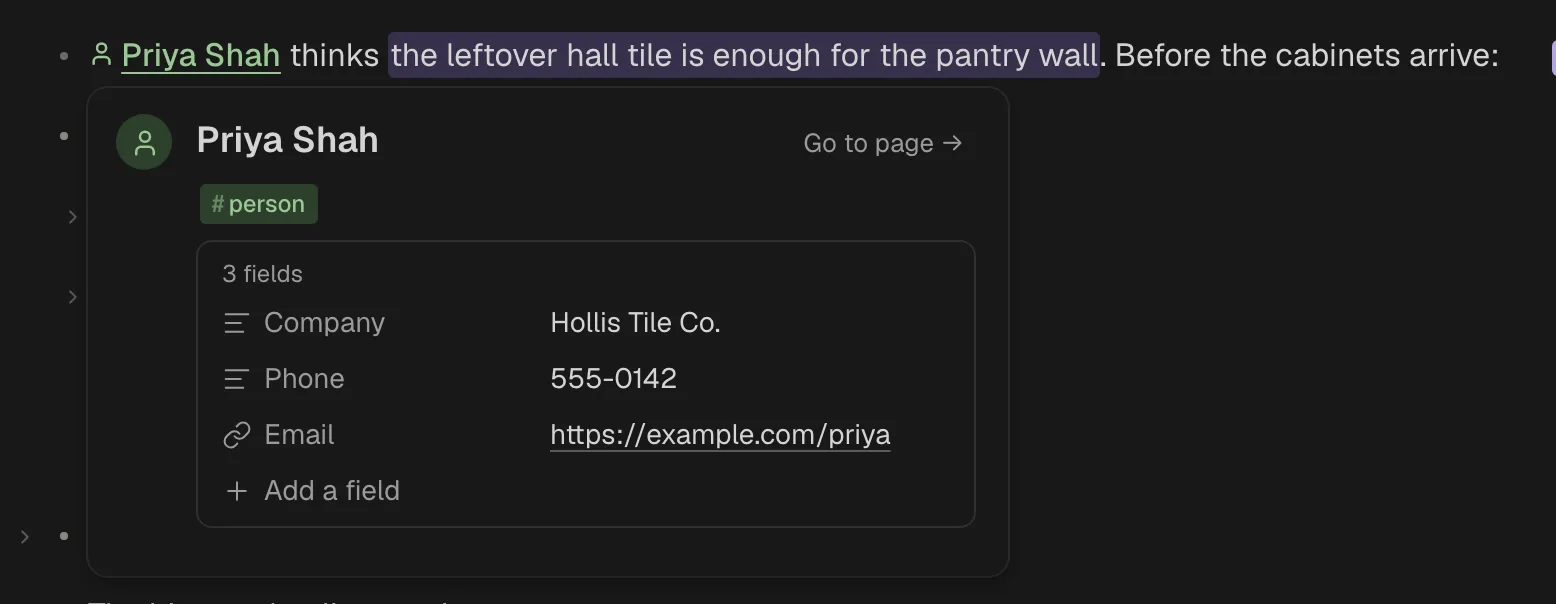
On a computer, rest the mouse on a mention or a reference for about half a second. A peek opens: the thing itself, not a summary.
- It shows the title, the tags, the fields and the first 8 lines.
- You can edit it right there.
- Go to page → opens it in full.
- It stays while the mouse or the caret is in it. Esc closes it.
Phones have no peek. A tap goes straight to the page.
Backlinks
Every page shows what points at it, in three groups:
- Shown on: the pages a thing is shown on.
- Mentioned in: lines with a mention of it, or words linked to it, with the words around them.
- Pointed at by a field: things whose field points at it, such as an Owner.
See it on a thing's page in Tags and things. Click a row to go to that line. A day page with nothing linked to it hides the section.
Backlinks sit in the right panel, in its This page view, beside the page rather than in it. Open the panel with its button at the right end of the band across the top, or ⌘⌥\. Under each row is where that line lives: its page, its day, or the thing it is inside.
Dated this day elsewhere
A day page's right panel also lists things whose date field holds that day, such as a task due then. Each row shows the thing's box (for to-dos and tasks), its name, and on the right where it lives; point at a row to see which field and day. A week, month, quarter or year page lists what is dated in it, with the day too. Click a section's heading to fold it.
Links to things deleted for good
A link to something deleted for good stays in the line. It is drawn grey with its last name: Old plan. Clicking it says “That was deleted for good.” Something in the Trash is not deleted for good; restore it and its links work as before.