
 Fennick
 Getting started
Fennick is not open yet. Join the waitlist and we will email you when your invite is ready. Once you are in, Fennick opens on today's page. Start typing.
Fennick is alpha, and you will lose data. Keep a copy of anything important somewhere else.
Join the waitlist
We invite people in small groups, free. Leave your email on the waitlist and we will write when it is your turn. New accounts are not open until then.
If you already have an account
New accounts are not open yet. You never need one to use Fennick, so Sign in is kept out of the way: it is in Settings, under Account (on a phone, in the card at the top of Settings). To get there fast, press ⌘K, type sign in and press Enter. If you have an account:
- Open Settings at the foot of the sidebar and click Sign in under Account (or press ⌘K and pick Sign in). Type your email and click Send link.
- The email has a 6-digit code and a link. Type the code in the sign-in box, or open the link.
Passkeys. Once signed in, open Settings and click Add a passkey. Fennick says when it is added and lists each passkey with the day it was added; Remove takes one off (it asks first). Next time, pick Sign in with a passkey. Signing in with Google, Apple, GitHub or X is planned coming.
- In the Home Screen app, use the code. The link always opens Safari, and the Home Screen app keeps its own sign-in.
- A code works once and ends after 10 minutes. If a code does not work, Fennick offers to send a new one.
Lock Fennick
Fennick can lock when you leave it, like a Mac does. Open Settings and, under On this device, set Lock to Immediately, After 1 minute, 5 or 15 minutes, or After 1 hour. It is Off until you set it.
- The time counts from when you leave: another tab, or the window hidden. Coming back after that time shows Fennick is locked and asks for your passkey (Touch ID on a Mac). Opening Fennick again in a new tab locks too.
- In a browser, Lock needs a passkey on your account. Add one first (see above).
- In the iPhone app coming, it unlocks with Face ID, Touch ID or the iPhone’s passcode.
- While it is locked, nothing behind shows and typing goes nowhere. What you wrote before it locked is kept and keeps saving. If unlocking does not work, Sign out is on the lock screen.
- Each device has its own Lock setting.
Day pages
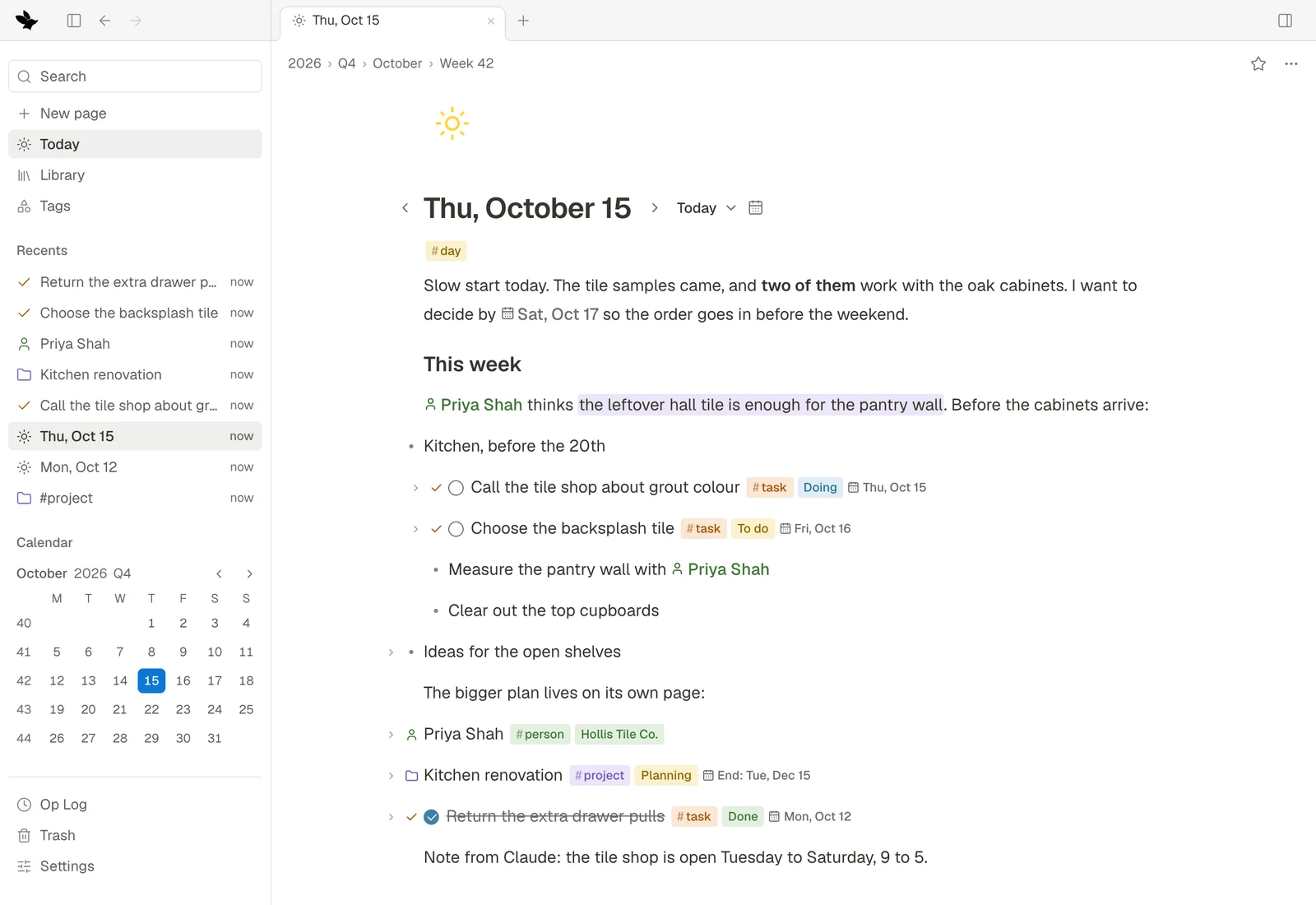
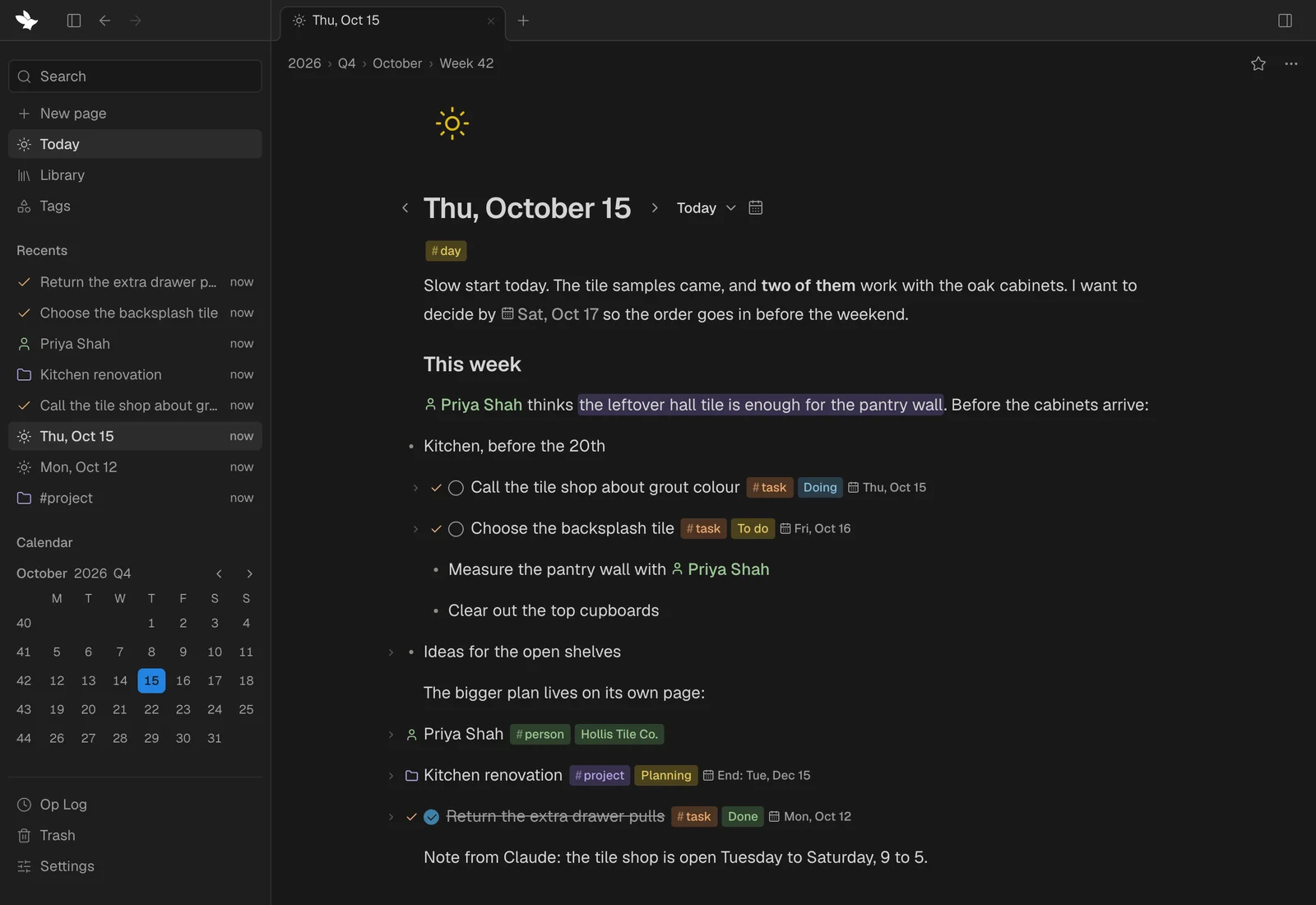
Each day has its own page. Today's page is where Fennick starts.
- Above the title: ‹ Sun · Today · Tue ›. Click to step a day back or on, or to come back to today.
- In the sidebar: Today, the days you wrote on lately under Recents, and a month calendar at the foot. Click a day in it to open that day.
- The Calendar shows each day of the month, how many lines you wrote, and things dated that day.
An empty page's first line, a day's too, says “Write, or press / for blocks, # to tag” until you type. Any other empty line says “Write, or press / for blocks” while the cursor is in it; a heading, list, to-do or quote shows its own name.
A day is made by the first thing you put on it. Looking at a day, stepping through days with ‹ and ›, or opening the Calendar makes nothing. A day you only looked at is not in your notes.
A new notebook opens on today's page with a short welcome. The welcome is only shown, never saved: it is not one of your lines, and once your notebook has something in it, it does not come back.
Lines
Each paragraph you write is a line. Press Enter for a new one. A line reads like ordinary writing, but underneath it is a real thing:
- it can be a heading, a list item, a to-do and more (Writing);
- it can hold lines inside it, as an outline (Outlining);
- it can be tagged, and carry fields (Tags and things);
- it can open as a page of its own: click its bullet in the left margin.
Point at a line to see its faint bullet. Click the bullet to open the line, drag it to move the line, right-click it for the line's menu.
On an empty page, clicking in saves nothing. Enter, Tab, a style key such as ⌘B, or a style button on the phone's keyboard bar does nothing until you type. The first letter you type, a paste, or the bar's # or @ makes the line.
Pages
- Pick New page in the command menu. Type a title, then press Enter to start writing.
- To make a page inside a page, type
/pagein a line. The line becomes a page; its words are the title. - Library in the sidebar lists every page and thing. Starred pages, and Recents (what you last edited), are in the sidebar too.
- The path above a page's title shows where it sits. Click a step to go there.
Quick capture
Write something down and send it somewhere, without leaving the page you are on.
- Open it: press ⌘K and pick Quick capture. On a phone, pull down at the top of a page and tap Add to today, or type “capture”.
- Pick where it goes (see below).
- Write. Return starts a new line.
- Click Add (or Create for a new page), or press ⌘Enter.
| Way | What it does |
|---|---|
| Add to a day | Adds the lines to the end of a day. Use ‹ and › to step to the day before or after. |
| Add to a page | Adds the lines to the end of the page you pick. |
| New to-dos | Adds the lines to a day as to-dos. Text and list lines become to-dos. |
| New page | Makes a page. The first line is its title. The page opens. |
- It opens in the way that fits where you are. On a day, it adds to that day, or makes new to-dos there if you used New to-dos last. On a page, it adds to that page. Anywhere else, it uses the way you used last.
- Markdown makes real lines:
#headings,-lists,[]to-dos, and indenting for nesting. - If you close it without sending, your words wait for a minute. Open it again to pick up where you were.
Finding things
- ⌘K opens the command menu: pages, things, days and actions.
- Search at the top of the sidebar opens the same menu. Its last row, Search everything, finds words and #tags in every line.
- Back and Forward (the arrows at the top, ⌘[ ⌘], or the browser's own) walk the pages you opened. Hold Back, or right-click it, to see up to 15 pages you came through. Click one to go straight there.
- Click a section's label (Starred, Recents, Calendar) to fold it, and again to open it. Fennick remembers it on this device.
- ⌘\ makes the sidebar small, a strip of icons; press it again to hide it, and once more to bring it back. The strip has one icon for each part of the sidebar, in the same order; Starred, Recents and Calendar open beside it.
Tabs
On a computer, a band runs across the top of the window in the colour of the open page's tag (grey when it has none). At its left, always in the same place whether the sidebar is full, small or hidden: the fox, the sidebar button, and Back and Forward. Over the page, your open pages as tabs; over the right panel, its views.
- Following a link changes the tab you are in. ⌘-click a link (or click it with the middle button) to open it in a new tab, next to the one you are in.
- + or ⌃⌥T opens a new tab on today, at the end, beside the +. Point at a tab for its ×, or press ⌃⌥W, to close it.
- A day's tab reads like “Wed, Oct 14”, with a sun; a week, month, quarter or year keeps its name and a calendar. Recents and the sidebar's Today use the same marks.
- Every tab is the same width, whatever its name; a long name ends in “…”. With more tabs than fit, they all get narrower together.
- Fennick keeps your tabs on this device.
- On a phone there is no band: the top bar takes the page's colour, and a small box shows how many pages are open. Tap it to see them, open a new one or close one.
Saving
There is no Save button and no “Saved” message. Fennick keeps every letter as you type, in this browser. While Fennick is in alpha, keep a copy of anything important somewhere else.
- Only what you write or change is saved. Opening a page, reading, and moving around never save anything.
- If a change can't be kept, Fennick puts the line back as it was and says “That change couldn’t be saved, so it was undone”, with the reason when there is one.