
 Fennick
 Tags and things
Tag a line with #, and the tag gets a colour, an icon, fields and a page of its own.
Every line is a real thing underneath. A tagged thing is not stuck on one page. It can show on many.


Tag a line
- Type some words, then
#and a name:Order the cabinet handles #task. - A menu shows the types you have. Pick one, or keep typing and choose Create #name.
- Press Space or Enter, or just leave the line. The tag moves to the end of the line as a coloured chip.
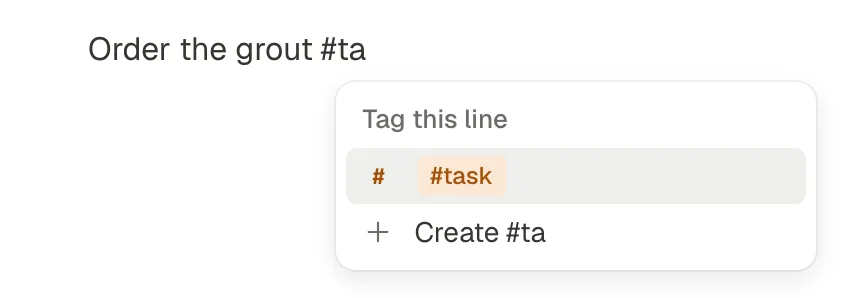
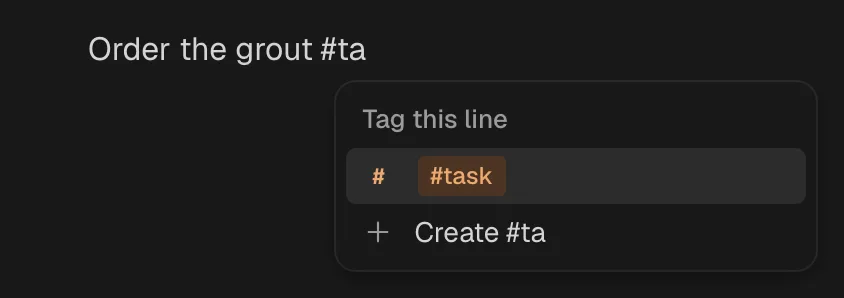
- Leaving a line tags it only if you typed in that line. Clicking into a line that ends in
#nameand away again changes nothing. #works straight after a word too:handles#task.#at the very start of a line is markdown:#makes a heading. It never tags.##, and a#inside a web address, never tag.- Tag names are lower case. A line can have more than one tag.
- The first time you use
#task, it comes with two fields: Status (To do, Doing, Done) and Due. - Click a tag chip to go to its tag's page.
- To take a tag off, open the line's menu (right-click the bullet) and pick Remove #name.
Things live on their own
A tagged line is a thing. No page owns it. It is shown on the page where you wrote it, and it can be shown on other pages too. Every place it shows is the same thing: change it in one place and it changes everywhere.
- Show it on another page: select the line (Esc), copy it, and paste it on the other page. It comes back as itself, not a copy. In a line, ⌘D shows it once more, right after itself.
- Move it: drag its bullet, press ⌘⇧↑ / ⌘⇧↓, or use Move to. Only that showing moves.
- Write after it: Enter at a thing starts a new line of the page after it.
- Open it: click its icon or bullet.
- Tab does nothing on a thing shown on a page. You can indent lines into it.
Plain lines (with no tag) belong to the page they are on.
A thing's own page
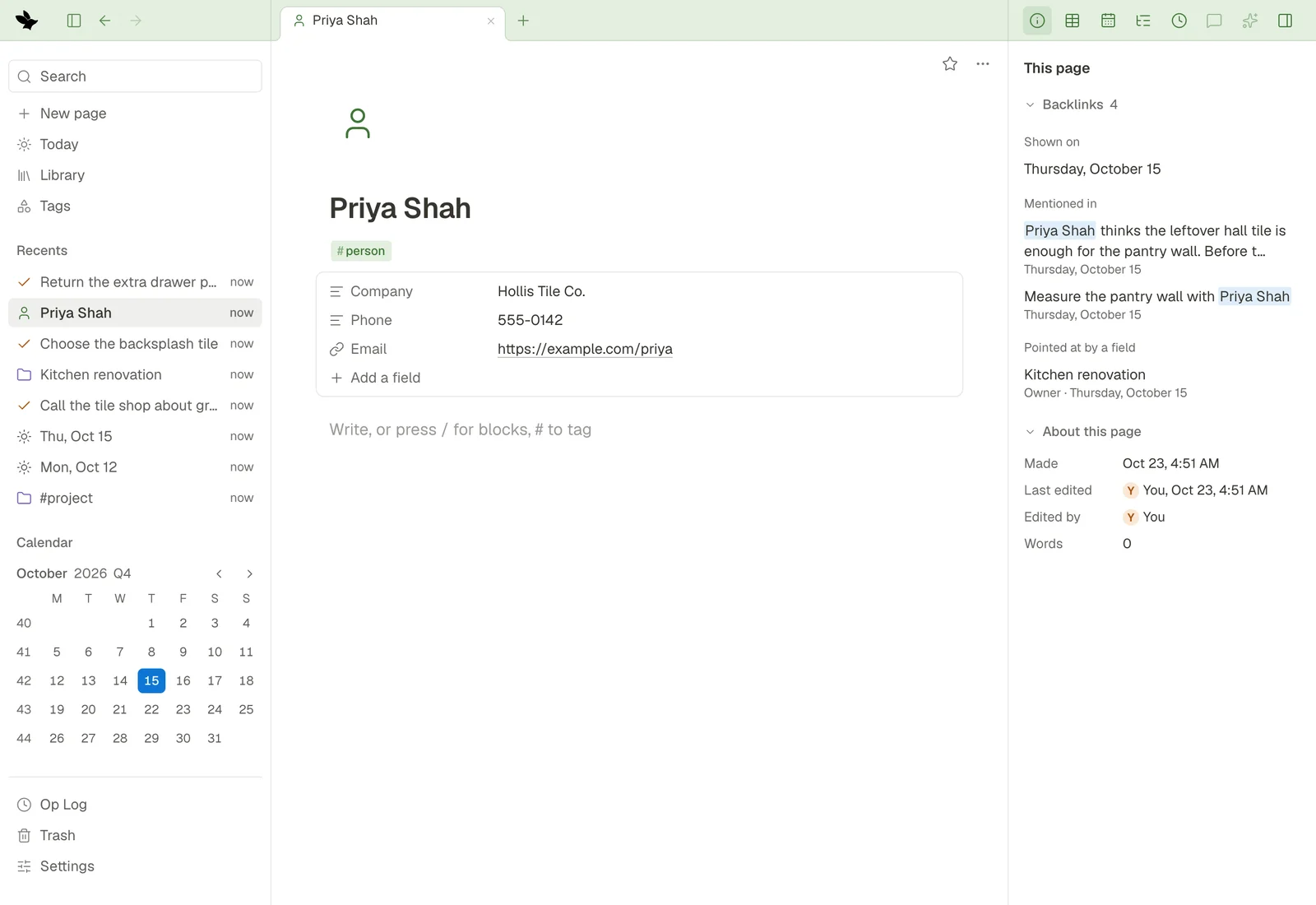
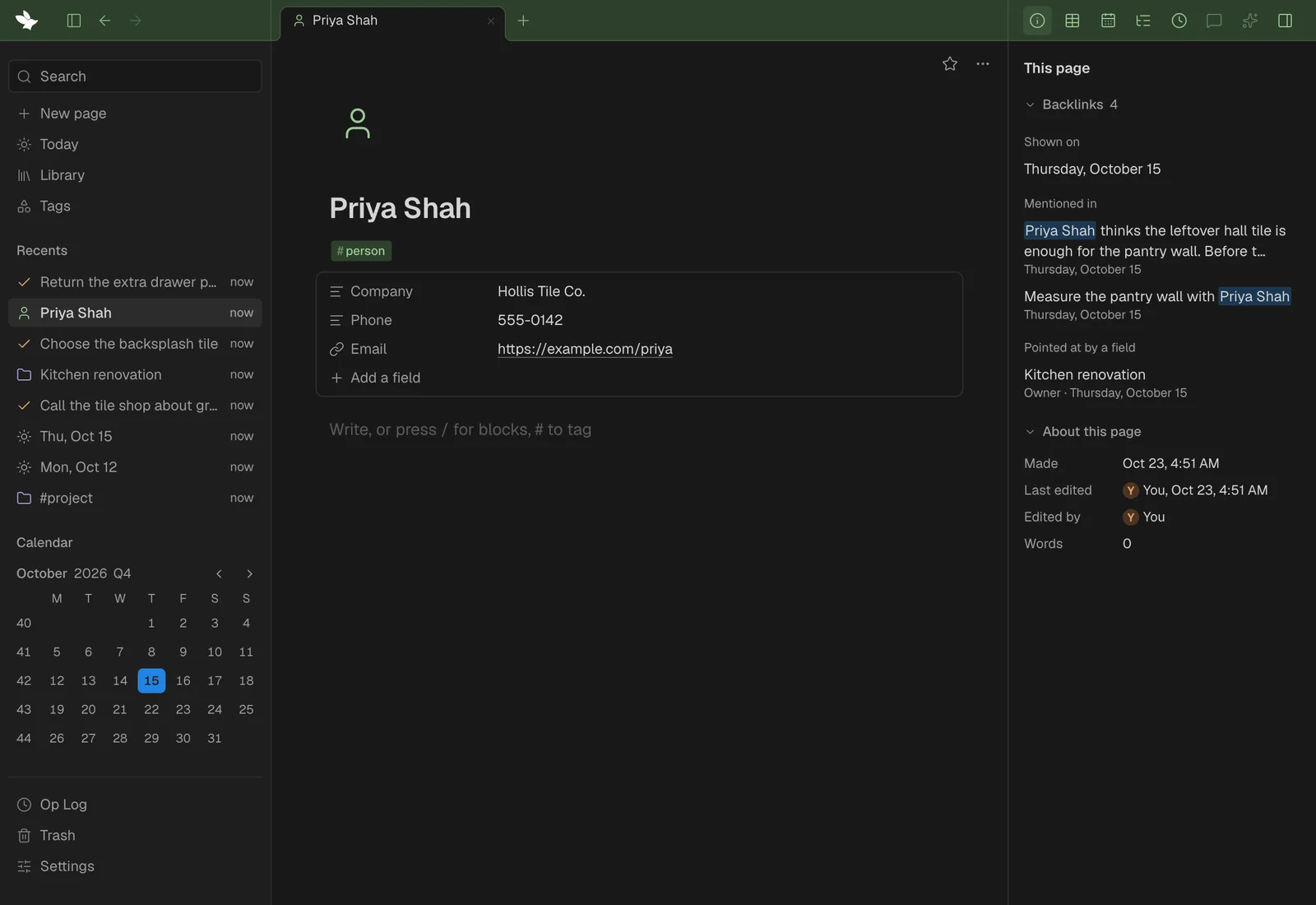
Click a thing's icon to open it. Its page shows:
- its icon above the title;
- its tags, and every field;
- its lines;
- in the right panel, Backlinks: the pages it is shown on, the lines that mention it, and the fields that point at it.
Deleting a tagged thing
- If it is used only here, Delete moves it to the Trash.
- If it is used anywhere else (shown on another page, mentioned, or pointed at by a field), Delete only takes it off this page.
- Delete everywhere in the line's menu always moves it to the Trash.
- Backspace on an empty thing does the same as Delete.
The Trash can put anything back. See Trash.
Tag pages
The first time you use a tag, Fennick makes it. Every tag is listed in Tags, in the sidebar, with how many lines are tagged with it. Click one to open its page.
On a tag's page you set:
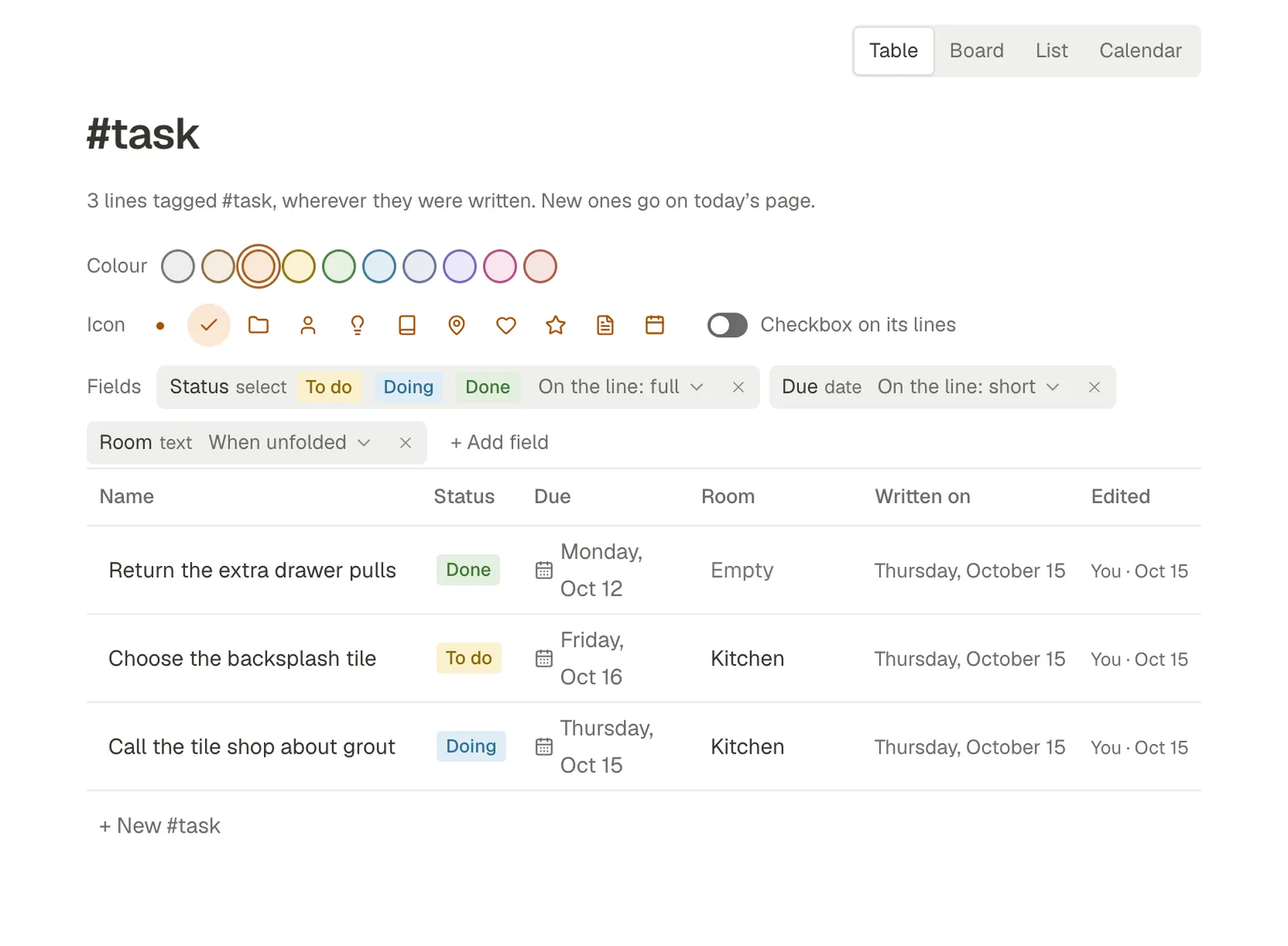
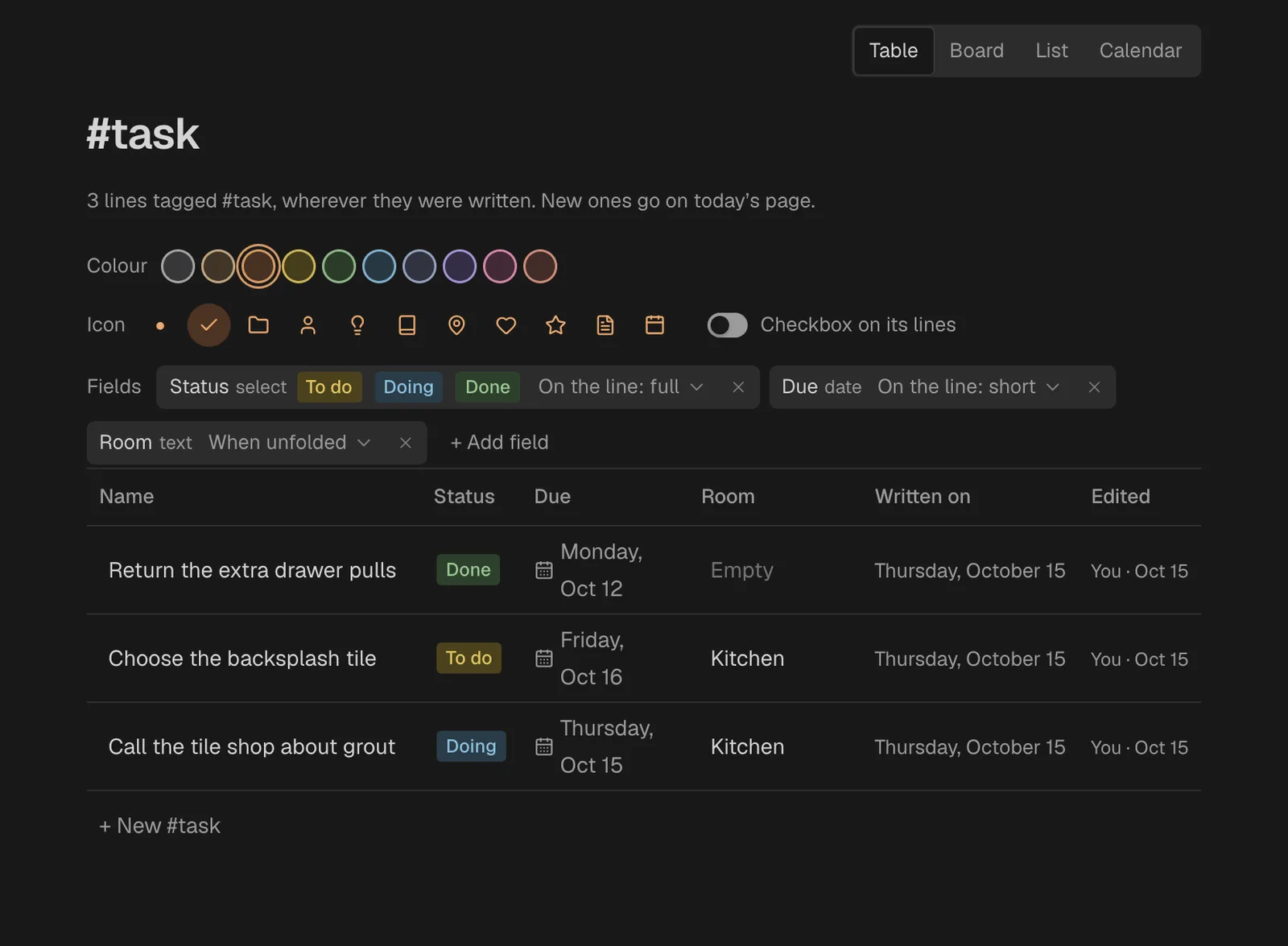
- Colour: a row of swatches. A new tag takes the colour used least so far, so neighbours differ.
- Icon: a dot in its colour, or one of these: task, project, person, idea, book, place, heart, star, note, event. The icon takes the place of the bullet on its lines.
- Checkbox on its lines: a switch; when on, its lines get a round checkbox beside the icon.
- Fields: see below.
Views
A view is a way to see anything; it does not belong to a tag. A tag's page lists every object with that tag, wherever it was written, and can switch between:
- Table: one row each, a column per field, then Written on and Edited. Type names and numbers in place; click a choice, date or other value to change it in the same small menu as the fields box. A wide table scrolls sideways in its own box.
- Board: cards in columns by a choice field, such as Status. Drag a card to another column to change it. With more than one choice field, pick one under Group by.
- List: each thing with the page it is on.
- Calendar: shows when there is a date field. Each sits on its date.
- Gallery: a card for each, with the fields you pick.
- Chart: a bar, line or pie chart that counts by a field, or sums or averages a number field.
A page's own blocks have views too: in the page's ⋯ menu, View as shows them as an outline, as prose, numbered or as a checklist.
+ New #name adds a new object on today's page.
Fields
A field holds one value on a thing: a status, a due date, a phone number.
Add fields to a tag
On the tag's page, open Tag settings and click Add a field. Give it a name and a kind. The kinds are the same, in the same order, wherever you add a field:
| Kind | Holds |
|---|---|
| Text | Any words |
| Number | A number |
| Date | A day, picked from a calendar. It shows as grey words with a small calendar. |
| Choice | One of a list of choices. Type the choices with commas between them. Each choice gets a colour; click its chip on the type's page to change it. |
| Checkbox | Ticked or not |
| Web link | A web address, opened with a click |
| Person or thing | A link to a person or to any other thing in your notebook |
Every line with that tag now has the field.
Add a field to any line
Type a name and :: on a line, as in Status::. The field goes to what the line sits in: the page, or the line it is indented under. Pick a field you already have, or New field “Status” (Enter picks it). The words before :: leave the line, and the line goes if nothing else is on it. :: alone opens the same menu with an empty name. Add a field, the last row of a fields box, adds one to that box's line or page.
- A new field asks what kind it is: Text, Number, Date, Choice, Checkbox, Web link, or Person or thing. Then its value opens straight away.
- Until a new field has a value, its value box also has Kind, to change what kind it is, and Remove field. A field with no value stays while you work, and is kept once it has one.
- A new Choice field starts with no options: type one and pick New option “…”.
- On a phone, the name, the kind and the value each open above the keyboard.
Where a field shows
Each field on a tag has a setting for where it shows. Click it (it reads like “On the line: full ⌄”) to pick:
- On the line: just its icon
- On the line: short
- On the line: full
- On the line: name and value
- When unfolded
- Only on its page
Until you choose, a tag's first two fields that are not text show in full on the line. The rest show when the line is unfolded.
Change a value
- Click a value on the line. A small box opens: choices as coloured chips, a date picker, or a text box. Clear empties it.
- Point at a line to see Add due (and so on) for its empty fields.
- Unfold a line to see its fields box: each field's name and value. Click a value to change it. Inline, the box shows six fields, then “N more fields”.
- On a thing's own page, every field shows. To fold the box away, point at it and click the ⌄ at its top right, or choose Collapse fields in the page's ⋯ menu. It folds to one row, “8 fields ›”; click that to open it again. Fennick remembers it for the page, and the right panel's Fields view still shows them all.
- A date in the past, on a line not yet ticked, shows as late.
- A choice that can hold several shows every value as a chip, wrapping onto more lines. Click them to open the list: picking a choice adds it, picking a ticked one takes it away, and the others stay.
- A link (a web address) opens in a new tab when you click it. To change it, click the pencil beside it, or anywhere else on its row.
- A person field shows the person icon; a link field shows the link icon.
Fields that point at a thing
A field can point at another thing, such as a project's Owner. The value shows as a link with the thing's icon and colour, not as a chip. Click the name to go there. Click beside it to choose another thing, or None.
Making a new field of this kind on a tag's page is not built yet coming.