
 Fennick
 Phones
Use Fennick in your phone's browser.
Phone apps of their own are planned coming.
Add Fennick to your Home Screen
On an iPhone, Fennick works best opened from the Home Screen, like an app.
It also keeps your notes safer. In a Safari tab, Safari can clear Fennick's notes if you don't open it for a week. From the Home Screen, they stay.
- Open Fennick in Safari.
- Tap Share, then View More, then Add to Home Screen.
- Check that Open as Web App is on. Tap Add.
Open Fennick from its Home Screen icon. It fills the screen, with no Safari bars.
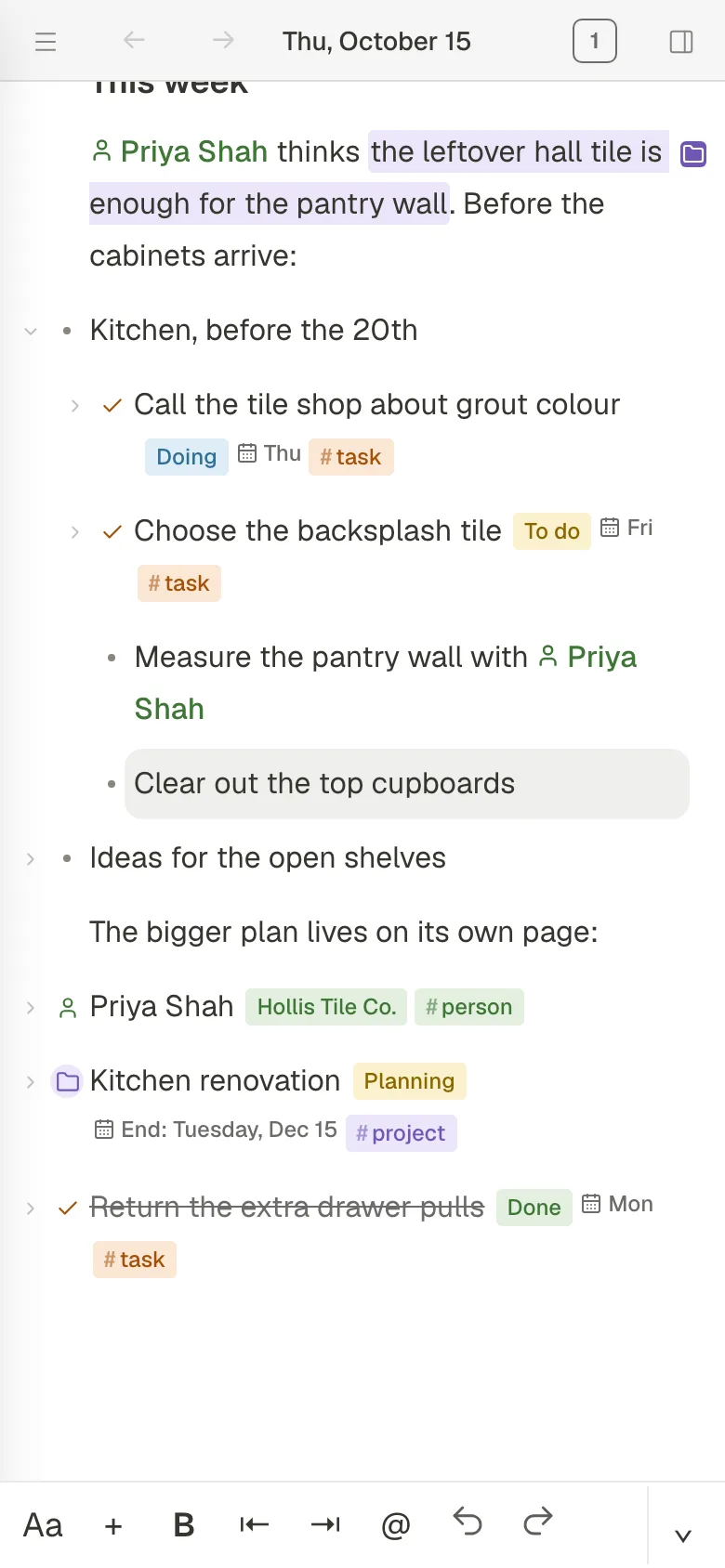
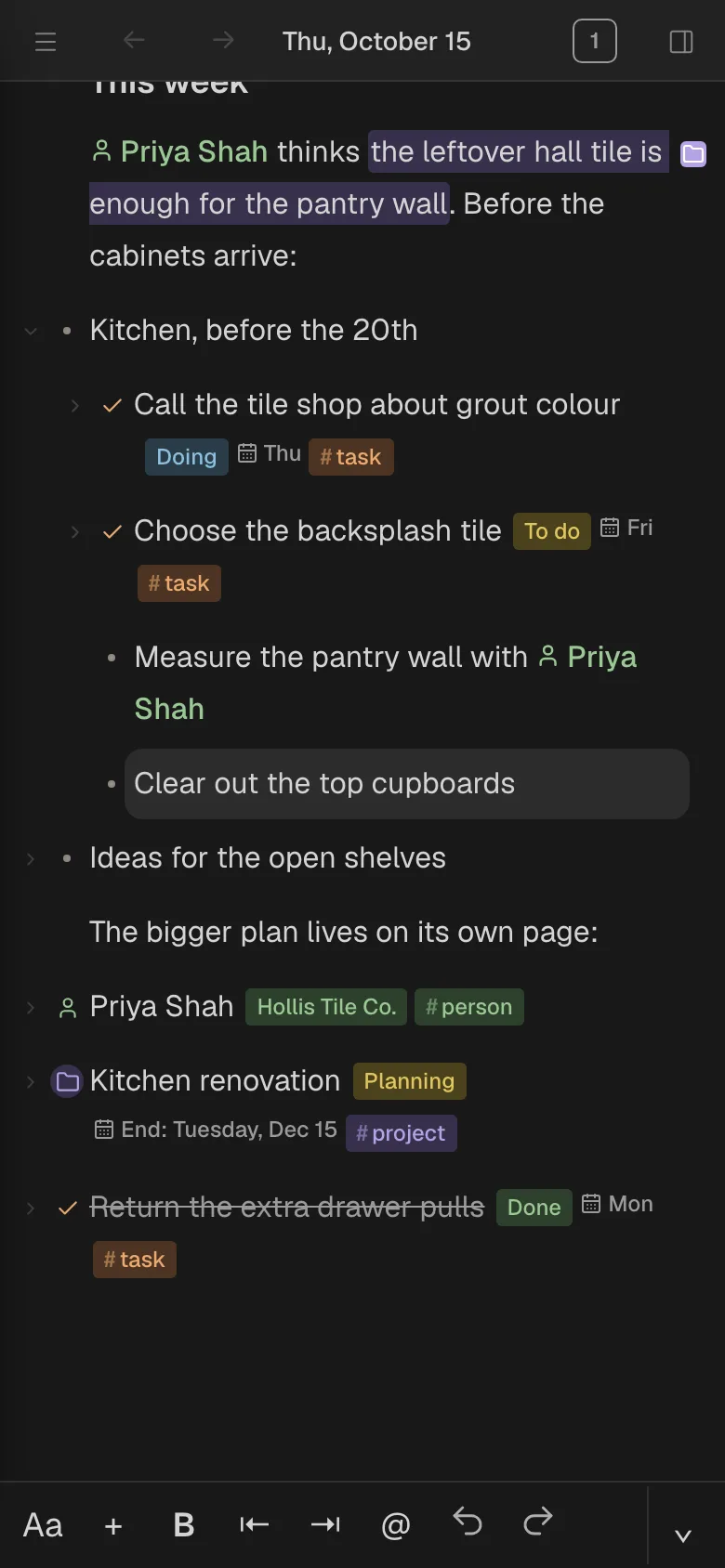
The keyboard bar
Opened from the Home Screen, Fennick shows a bar on top of the keyboard while you type. In a Safari tab there is no bar, so the space above the keyboard stays clear.
| Button | What it does |
|---|---|
| Aa | Opens the line's menu: turn it into a heading, a list, a to-do and more. |
| + | Opens the / list of line kinds. |
| B | Bold. With words selected, it styles them; with none, the next letters you type. |
| ⇤ ⇥ | Outdent and indent the line. Indenting stops at five steps; the button greys out there. |
| @ | Starts a link to a page, a thing or a day. See Links and Dates. |
| ☐ | Shows only on a to-do line. Ticks it, or takes the tick off. |
| # | Shows only on a tagged line. Starts another tag. |
| Undo, Redo | Undo and redo, one step at a time. |
| ⌄ | Hides the keyboard. |
The bar hides while the / list is open.
Typing on a phone
- The line you are typing in has a soft background.
- Menus (/, @, #) open next to the line, in the part of the screen the keyboard leaves free.
- The page scrolls so the line you are typing in stays above the keyboard.
Pull down to search
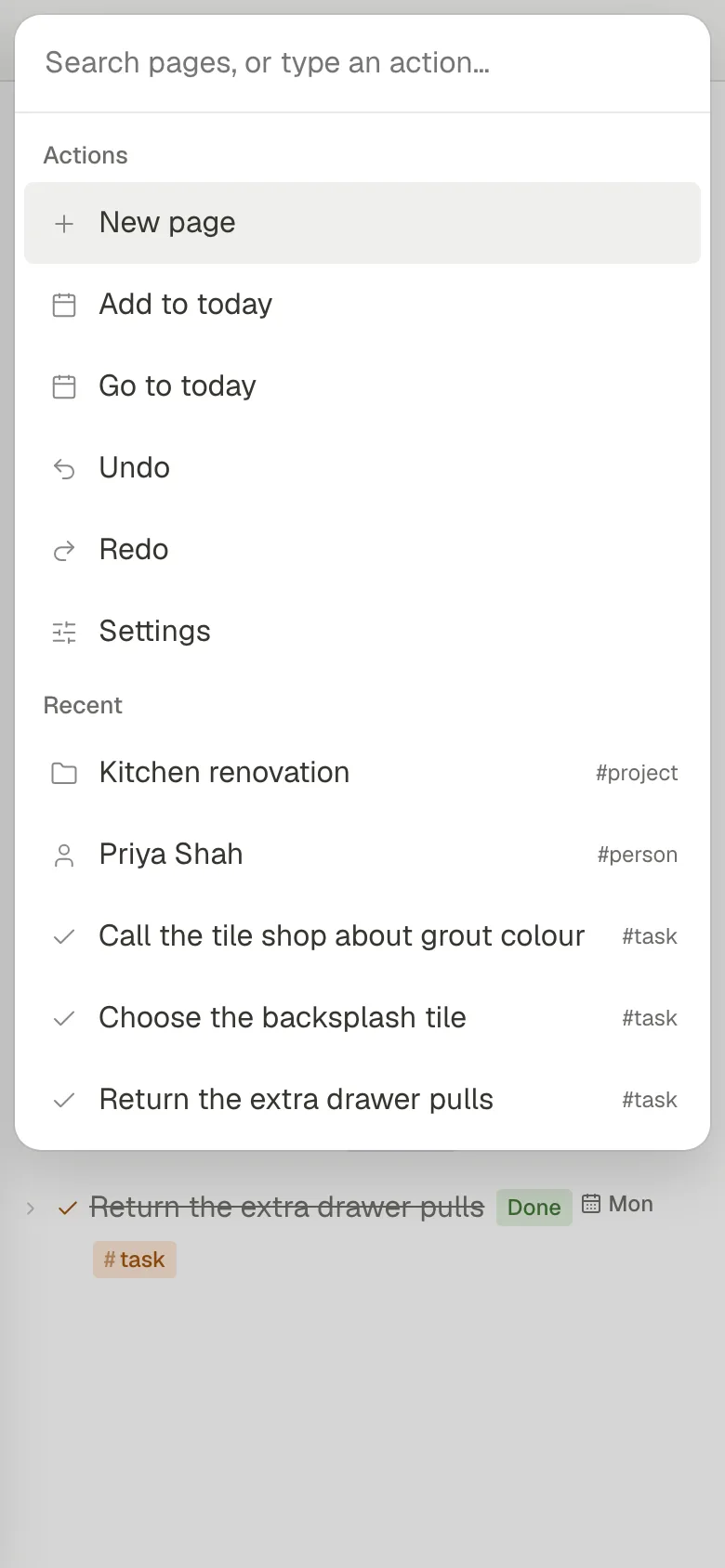
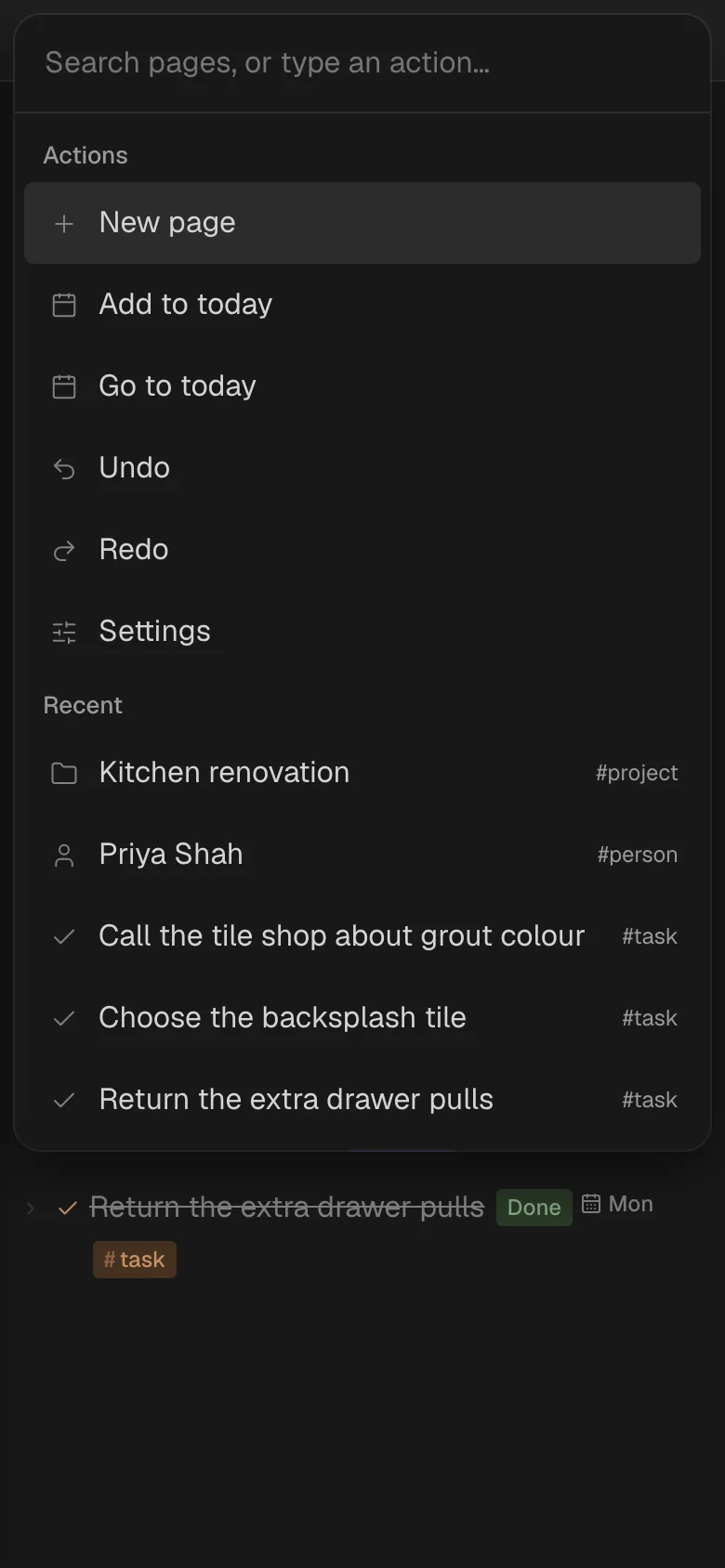
At the top of a page, pull down, as you would to refresh. A small “Pull to search” follows your finger; let go once it says “Let go to search”. The search opens at the top of the screen with the keyboard up.
Before you type, it offers New page, Add to today (Quick capture on today), Go to today, Undo, Redo and Settings, then your recent pages. Type to find pages, things, days and actions, as in the command menu.
The pull only works when the page is already at its top, and not while you are typing. Search in the sidebar, or a tap with two fingers, opens the same search.
While you type, Undo and Redo are on the keyboard bar; Back and Forward are in the top bar.
Back and page history
Hold the Back arrow at the top to see up to 15 pages you came through. Tap one to go straight there.
On a phone the path above a page keeps its last two steps; a … stands for the rest. Tap the … to go up one step. Hold it to see every step it stands for (the year, the quarter…), and tap one to open it.
Links on a phone
A tap on a mention or a reference goes straight to its page. Back takes you to the same spot. There is no hover peek on a phone; the peek is for computers.
Styling words
Select words with the phone's own handles. Fennick's toolbar shows below them, so it does not cover the phone's own menu above them.
To highlight in a colour, tap Aa on the keyboard bar, then Highlight, and pick one. It colours the words you selected, or the whole line when none are.
The sidebar
On a narrow screen the sidebar hides. Tap the menu button at the top left to show it. Tap outside it to close it.
Pick lines
Pick whole lines to change, move, copy or delete them together.
- Swipe sideways across a line. It is picked: circles show beside the lines, and a bar appears at the bottom of the screen.
- To pick the lines below too, keep your finger going down.
- Tap a line to add it, or tap a picked line to drop it.
- Use the bar. Tap Done when you finish.
The bar shows how many lines are picked, and these buttons:
| Button | What it does |
|---|---|
| Edit | Shows when one line is picked. Puts the caret at the end of it. |
| Turn into | Changes the picked lines into text, a heading, a list, a to-do, a quote, a callout or code. |
| To-do | Makes them to-dos, or ticks them all. |
| Indent, Outdent | Moves them in or out one step, together. |
| Move to | Sends them to another page. See Move to. |
| Copy | Copies them, with their structure. See Copy and paste. |
| Delete | Moves them to the Trash. |
| Done | Stops picking. |
Going to another page also stops picking.
Swipe to indent
In the line you are typing in, swipe right quickly to indent it. Swipe left to outdent it.
On a phone, an outline goes five steps deep at most.