
 Fennick
 The command menu
Press ⌘K or ⌘P to go anywhere or do anything.
One box finds a page, a thing or a day, and acts on the line you are in. On Windows, press Ctrl+K or Ctrl+P.
Open it
- ⌘K or ⌘P, anywhere. Press it again to close.
- On a phone: pull down at the top of a page, tap Search in the sidebar, or tap the screen with two fingers. See Pull down to search.
Note: with words selected in a line, ⌘K links them instead (as in Notion). ⌘P always opens the menu.
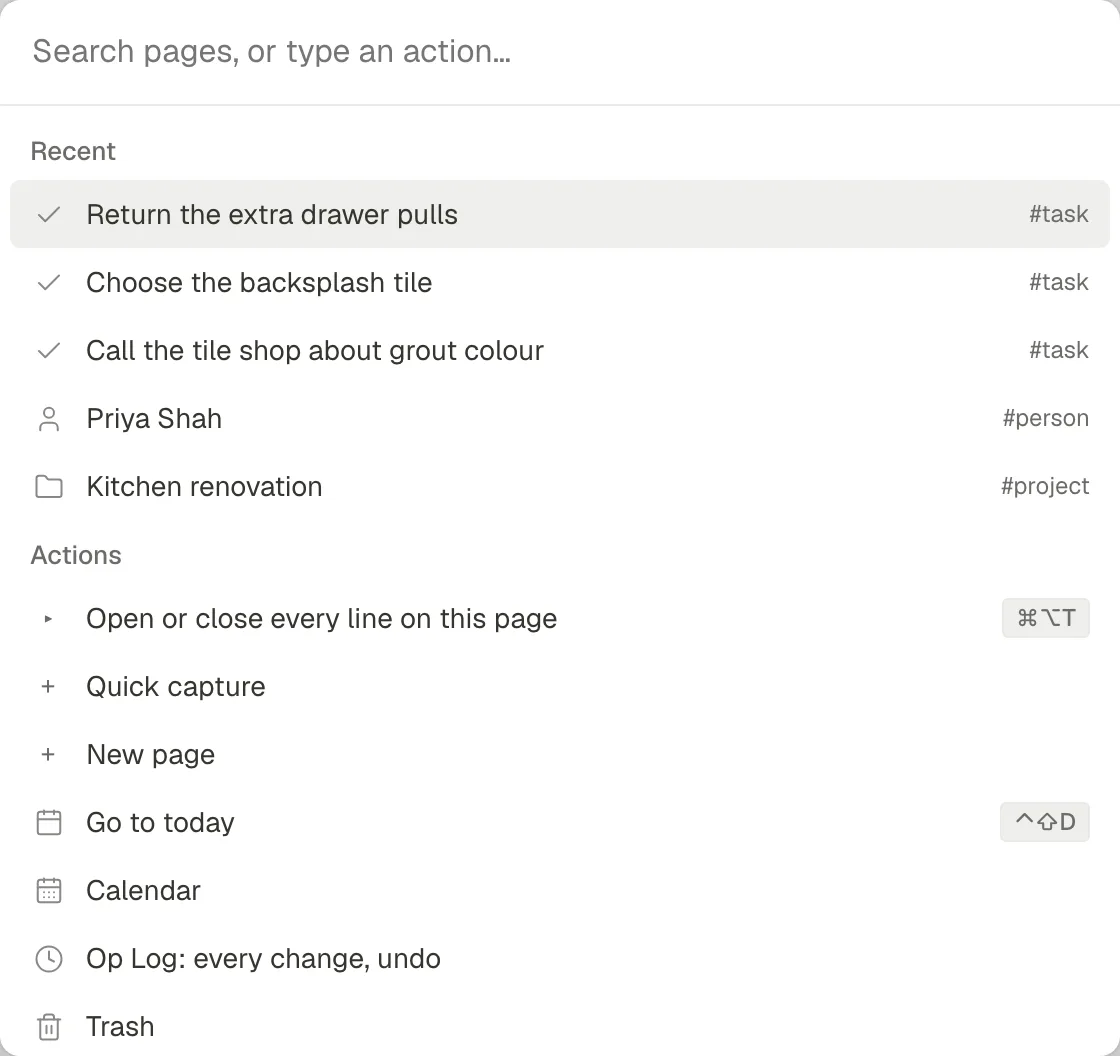
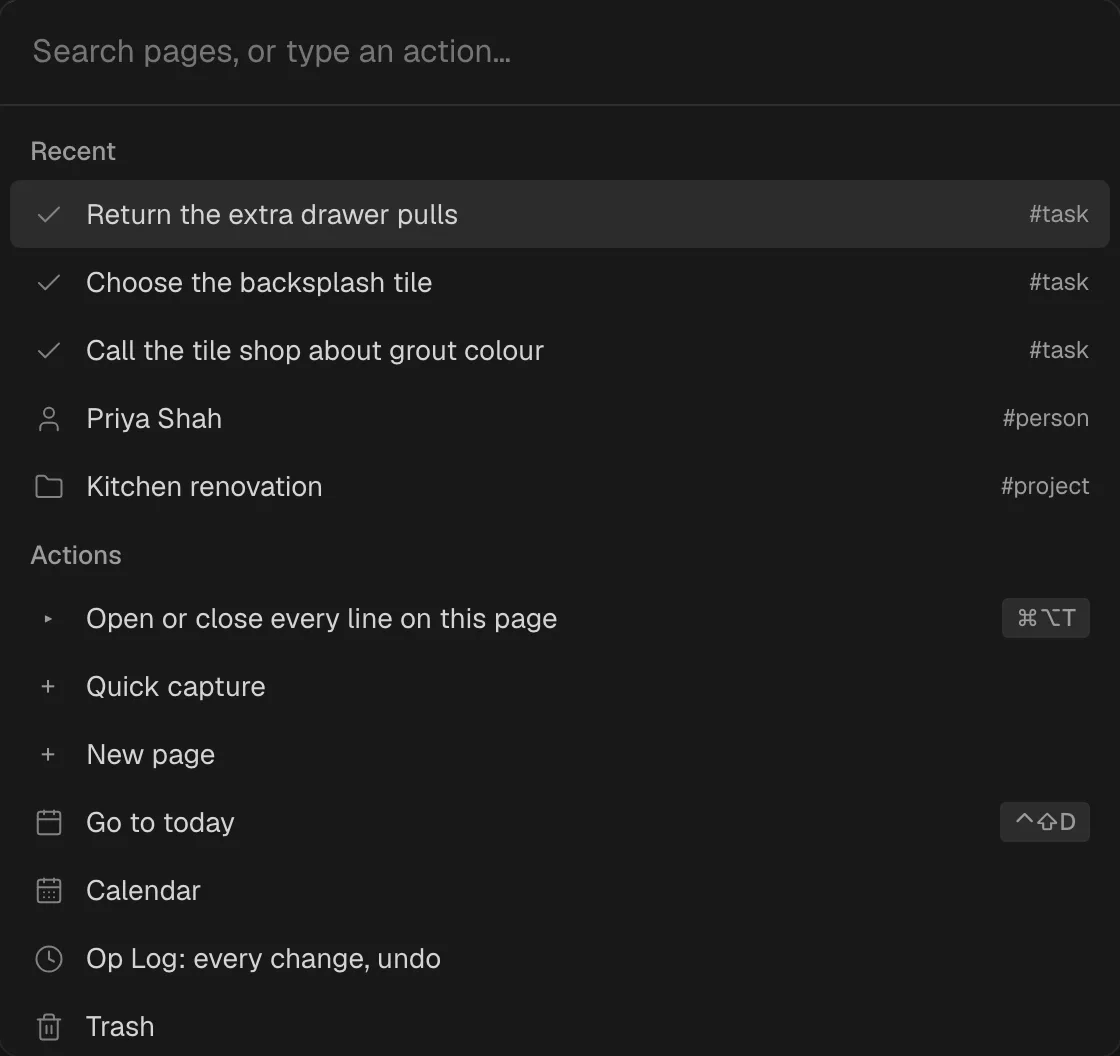
Find a page, a thing or a day
- Empty, the menu shows your Recent pages and things.
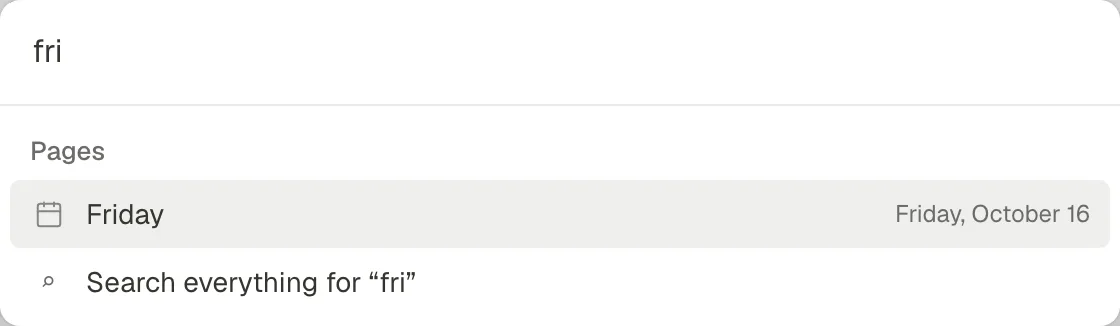
- Type to find pages and tagged things. The best match comes first: the name itself, then names that start with what you typed, then names with a word that starts with it, then names that hold it anywhere, then things whose type’s name matches. The link (
[[and@), Move to and field pickers use the same order. - Type a day:
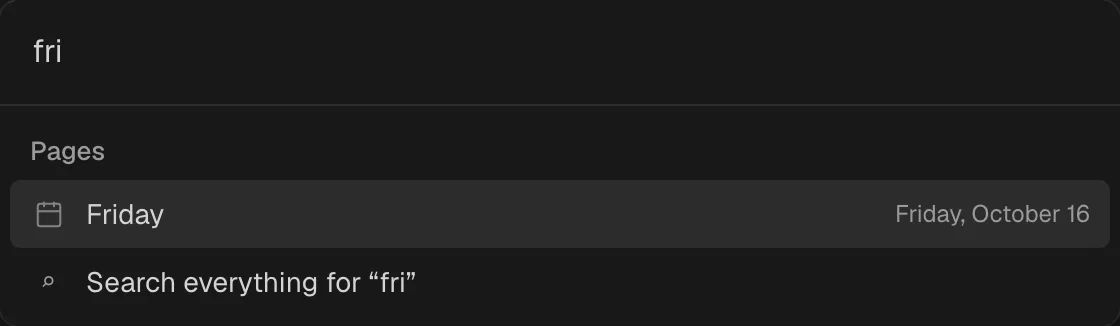
today,tomorrow,fri,oct 15. It reads the same words as dates in lines. - The last row, Search everything for “…”, searches the words of every line.
Actions
Below the pages are actions. When the caret is in a line, or lines are selected, the first actions work on them:
- Turn into each kind, with its ⌘⌥ key
- Move to… another page (⌘⇧M)
- Duplicate (⌘D)
- Open as a page
- Delete the line, or Delete the lines
Then, always:
- Open or close every line on this page (⌘⌥T)
- Quick capture: write something down and send it to a day or a page. See Quick capture.
- New page
- Go to today (⌃⇧D on a Mac)
- Calendar
- Op Log: every change, undo
- Trash
- Make the sidebar small, Hide the sidebar or Show the sidebar (⌘\)
- New tab (⌃⌥T)
- Show who wrote what or Hide who wrote what
- Sign in, when you are not signed in. It opens the same sign-in as Settings, Account. See If you already have an account.
Type part of an action's name to find it: move, head, trash, sign in.
Keys in the menu
- ↑ ↓ move through the rows.
- Enter runs the row.
- Esc, or a click outside, closes the menu and puts the caret back where it was.
The search box
Search at the top of the sidebar opens this menu. To find every line whose words, or tags, hold what you type, pick Search everything at its foot.