
 Fennick
 Outlining
Indent a line and it becomes an outline: the line and the lines inside it get bullets.
Top-level writing reads as prose. Prose and outline are the same lines, shown two ways.
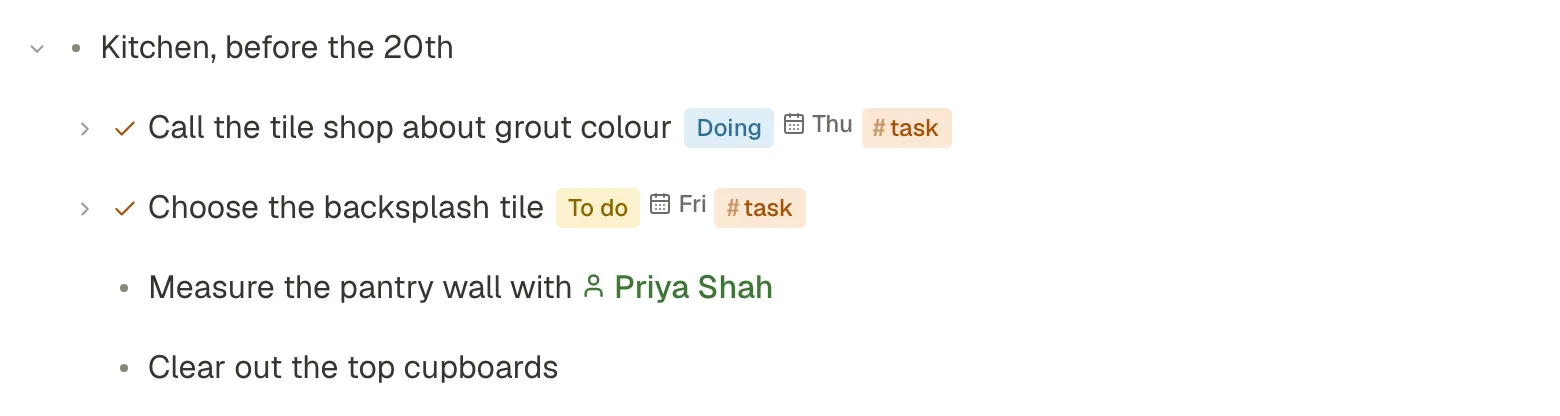
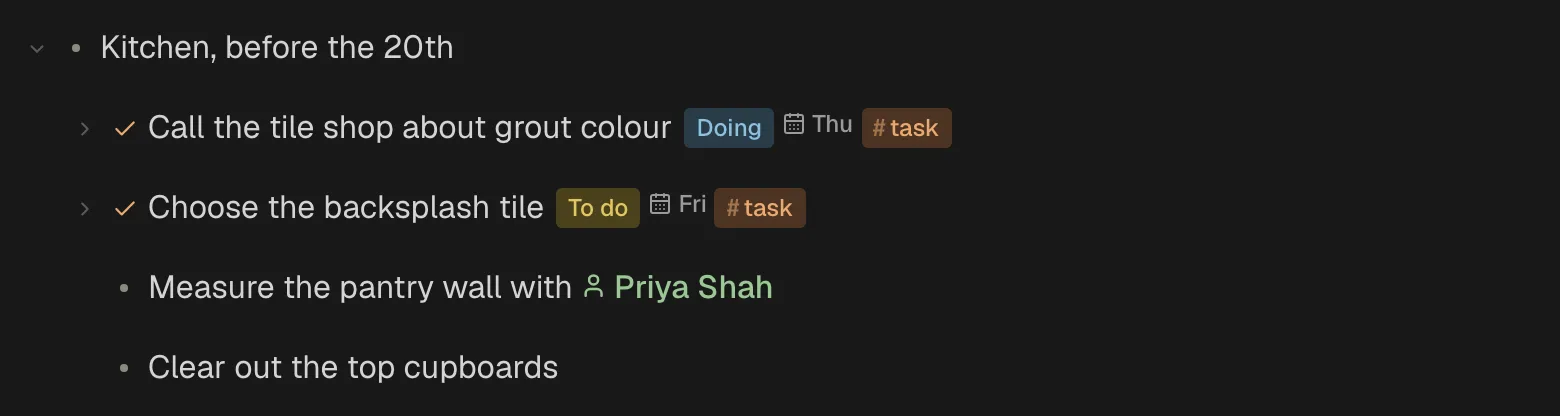
Indent and outdent
- Tab puts the line inside the line above it.
- ⇧Tab takes it out one step. The lines after it, at the same step, go inside it.
- Enter on an empty indented line also takes it out one step.
- Indenting into a folded line opens it, so you see where the line went.
The bullet
Each line's bullet sits in the left margin. It is the line's handle:
- Click the bullet to open the line as a page of its own.
- Drag the bullet to move the line, and the lines inside it.
- Right-click the bullet for the line's menu. ⌘/ opens the same menu from the keyboard.
A page reads as a document: its plain lines have no bullet (point at one and a faint bullet shows, which you can still click, drag and right-click). Press Tab to indent a line and it and the line it goes under both become bullets. You can also make a bullet on its own: type - , or use Turn into. A bullet stays a bullet when its lines go or when you bring it back out with ⇧Tab; Backspace at its start makes it plain text again. A tagged line shows its type's icon, or a dot in its type's colour.
What counts is the page you have open: open a line as its own page and its plain lines read as a document there.
Fold and unfold
- The thin arrow beside a line says it has lines inside. A folded line shows its › all the time; an open one shows its ⌄ when you point at it. On a phone the arrow always shows. Click it to fold or unfold.
- Or press ⌘↑ to fold and ⌘↓ to unfold.
- ⌘⌥T opens every line on the page, or closes them all.
- A tagged line's icon gets a soft glow when it is folded.
- Fennick remembers what you folded.
- A line with lines inside starts folded, until you open it.
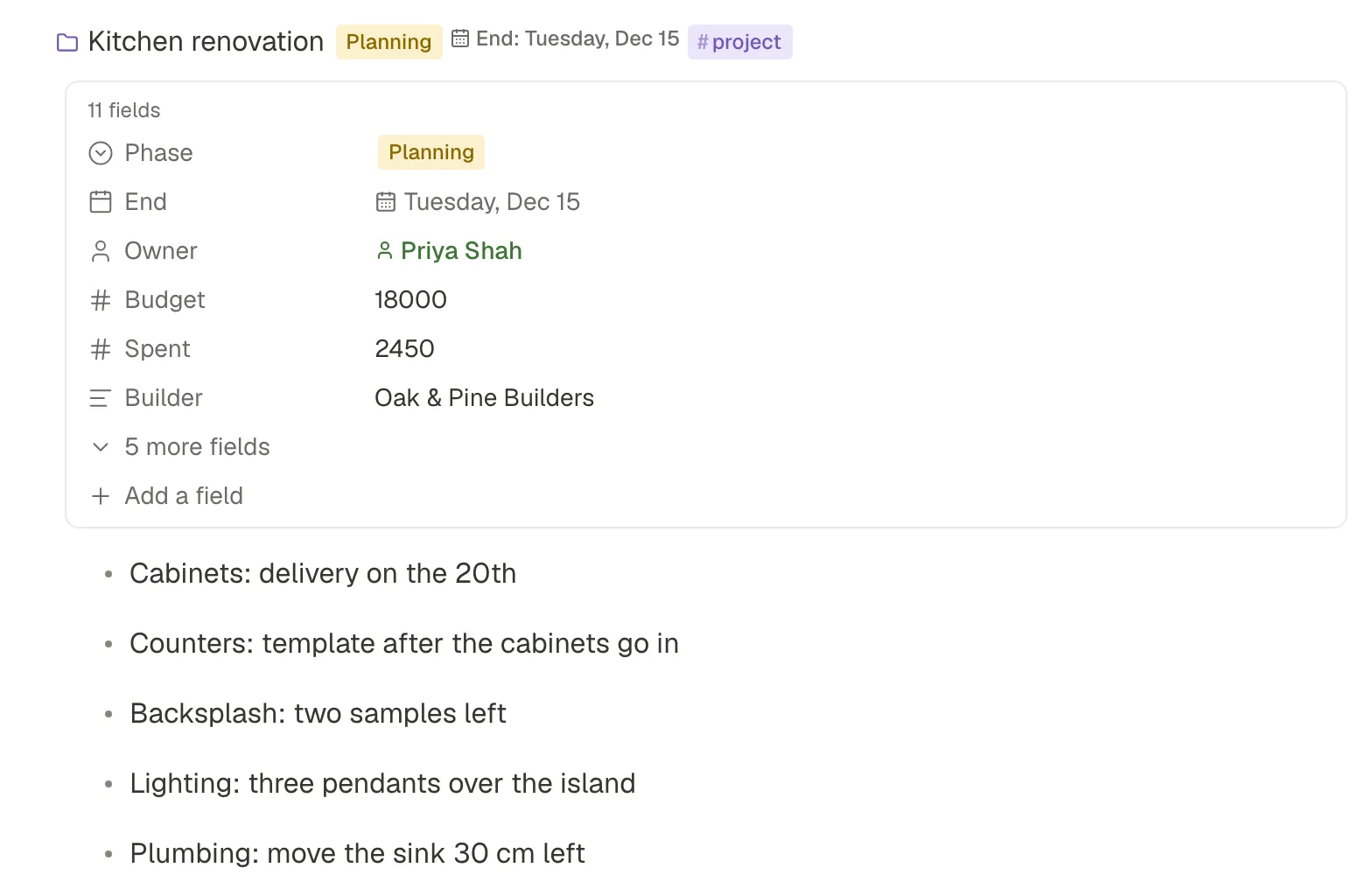
- Unfolded in place, a line shows its fields first, then its lines. It shows at most 15 lines, then “N more lines · see them all on its page”.
Open a line on its own
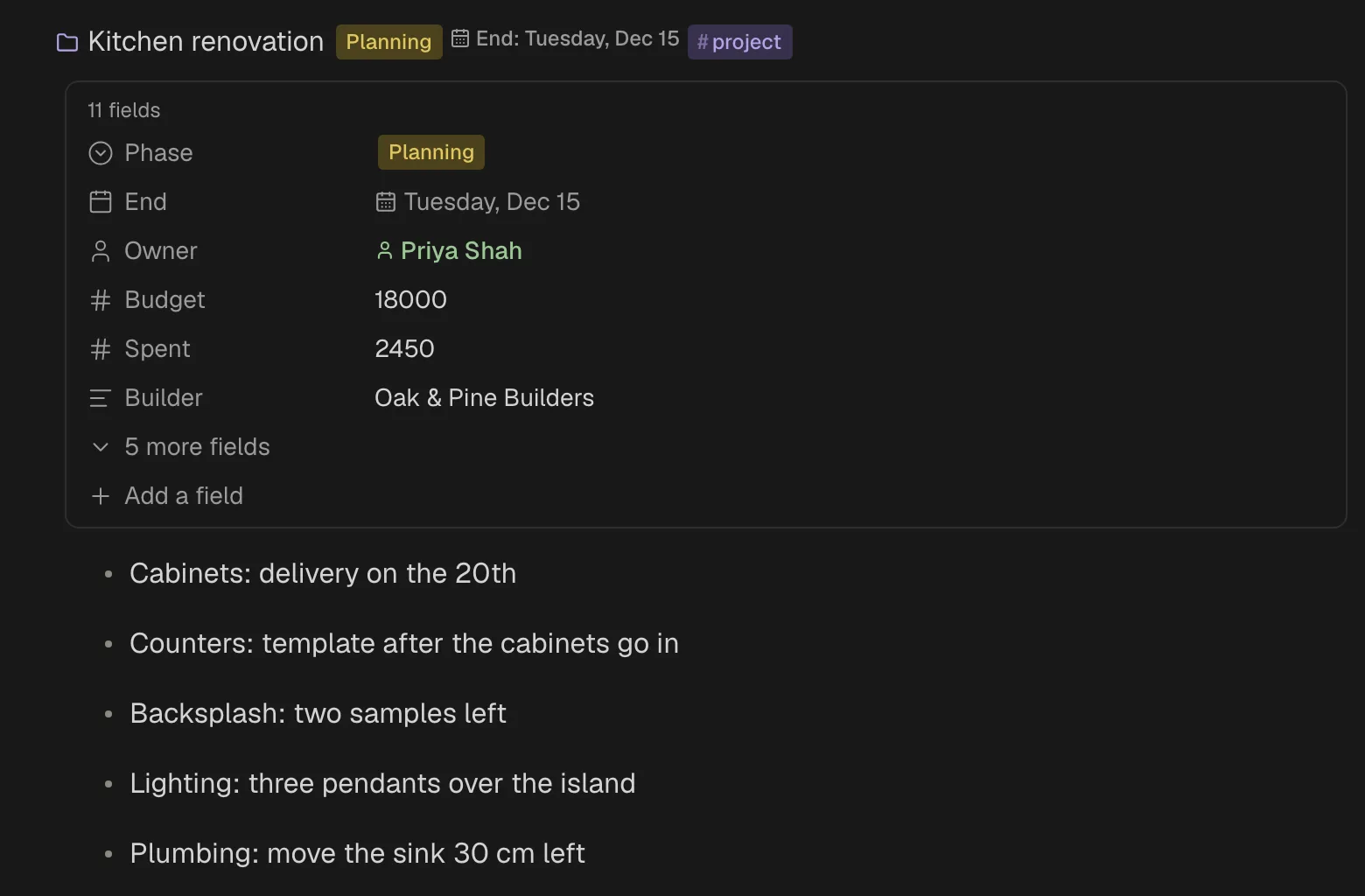
Click a line's bullet, or pick Open as a page in its menu. The line's words become the title. Its lines show below, as an outline. The path above the title takes you back up. A line opened this way keeps every field in view.
Select whole lines
Select lines to move, indent, copy or delete them together.
- Drag: press in a line and drag onto other lines. Or start in the empty margin beside the lines. The lines inside a selected line come with it.
- Shift-click a line to select from the line you are in to that one.
- ⇧↑ or ⇧↓ at the very start or end of a line's words selects lines. Keep pressing to grow the selection.
- Esc selects the line you are typing in.
- ⌘A selects the line's words, then the line, then every line.
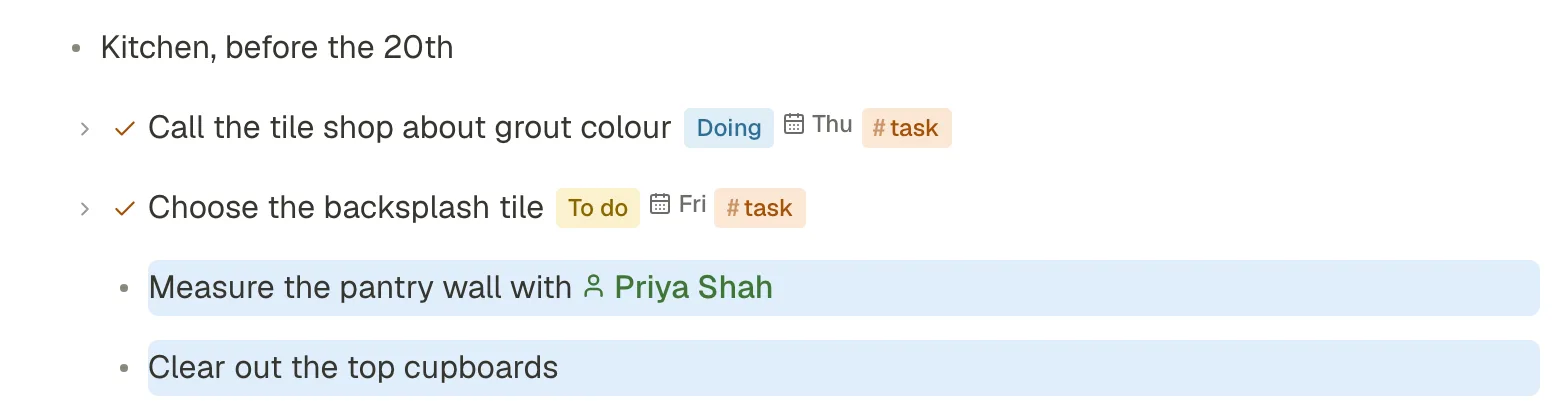
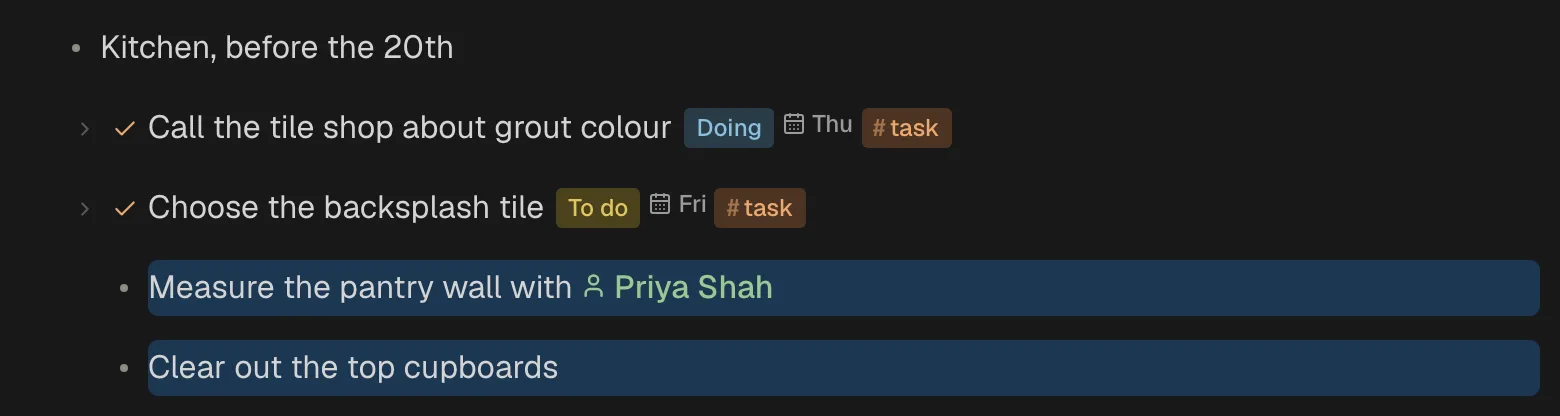
With lines selected:
| Do this | Key |
|---|---|
| Move them to the Trash | Delete or ⌫ |
| Copy, cut | ⌘C ⌘X |
| Indent, outdent, as one block | Tab ⇧Tab |
| Move up or down, as one block | ⌘⇧↑ ⌘⇧↓ |
| Make to-dos, or tick them all | ⌘Enter |
| Duplicate, as one block after them | ⌘D |
| Move to another page | ⌘⇧M |
| Drag them all | Drag one selected bullet |
| Edit again | Enter |
| Let go | Esc, or click elsewhere |
A tagged thing that is also used somewhere else is only taken off this page, not deleted. See Deleting a tagged thing.
On a phone, swipe sideways across a line to pick it. See Pick lines.
Move lines
- ⌘⇧↑ and ⌘⇧↓ move the line one step, among the lines beside it.
- Drag a bullet onto any line. A mark shows where it will land, above or below that line.
- The line's menu has Move up and Move down.
Move to another page
Send a line, or selected lines, to another page. Three ways in:
- ⌘⇧M
- Type
/moveto, or pick Move to… in the / menu. - Move to… in the line's menu, or in the command menu.
The list offers Today and Tomorrow first, then pages and things you changed lately. Type to find another. The lines go to the end of the page you pick, with the lines inside them. You stay where you were. One ⌘Z brings them back.
The line's menu
Right-click a bullet, or press ⌘/. It has: Open as a page, the line kinds, Duplicate, Move up, Move down, Move to…, Remove #tag (for each tag) and Delete. A tagged thing shown on this page has Open, Remove #tag, Move to…, Delete and Delete everywhere.